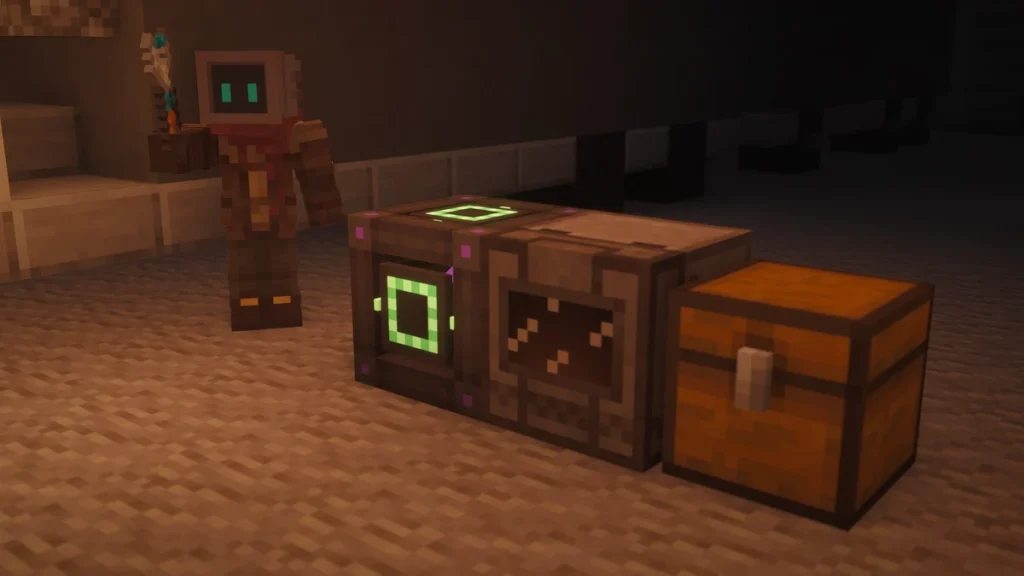
The  Configurator is Mekanism’s wrench, and you’ll use it to change what each side of a machine does, to rotate machines and to pick them up without losing what’s inside. It’s crafted from 2
  Iron Ingots, an
  Osmium Ingot and a
  Steel Ingot, so you’re able to make one as soon as you have your first Steel.
To use it, you’ll sneak and right-click a side of a machine, which will change that side to the next setting, whereas a plain right-click only tells you what the side is set to. It has eight modes, which you’ll switch between with the N key, and it never opens a screen of its own, as the grid of colored sides is a tab inside each machine.
How to Get It
The recipe is two Iron Ingots side by side along the top, with an Osmium Ingot under the right one and a Steel Ingot under that. It doesn’t hold any energy, so there’s nothing to charge, and the Steel page covers how to make the ingot if you haven’t got one yet.


On 1.20.1 it was a different recipe, with  Lapis Lazuli, two
  Infused Alloy, an
  Energy Tablet and a
  Stick, and that version had to be charged before it would do anything. Any wrench from another mod will also work on Mekanism’s machines, as long as that mod has tagged it as a wrench.
How to Use It
The Configurator starts out in a mode called Configurate (Items), and pressing N will move it on to the next one. You’re able to sneak and scroll the mouse wheel to do the same thing as well, and the mode that it’s in is shown on your screen while you’re holding it.
| Mode | Right-click | Sneak and right-click |
|---|---|---|
| Configurate (Items) | Shows what the side does with items | Changes the side to the next setting |
| Configurate (Fluids) | Shows the fluid setting | Changes the fluid setting |
| Configurate (Chemicals) | Shows the chemical setting | Changes the chemical setting |
| Configurate (Energy) | Shows the energy setting | Changes the energy setting |
| Configurate (Heat) | Shows the heat setting | Changes the heat setting |
| Empty | Drops every item inside onto the ground | The same |
| Rotate | Turns the front to face the side you clicked | Turns the front to the opposite side |
| Wrench | Rotates the machine | Picks the machine up as an item |
A machine only has the settings that make sense for it, so a  Crusher has nothing to change in the Fluids mode, as it doesn’t hold any. The message that tells you what a side is set to appears just above your hotbar, like “Current Items behavior: Output”, so you won’t need to open the machine to check a side.
Picking Machines Up
Wrench mode is the one for moving a base, as sneaking and right-clicking a machine with it drops it as an item. It keeps its items, energy, upgrades and side settings, so it’s ready to work as soon as it’s placed again. That only works on Mekanism’s own machines, so a  Chest, a
  Monster Spawner or another mod’s block needs a
  Cardboard Box to move in one piece.
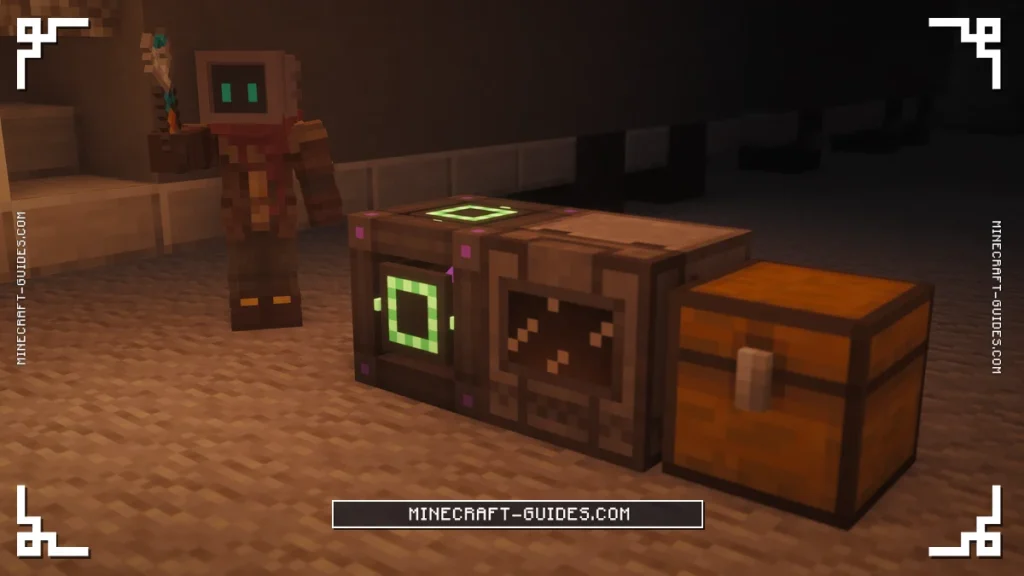
The Empty mode only drops the items that are in a machine’s slots, and it won’t touch a tank. To clear a fluid or a chemical out of a machine you’ll need a  Gauge Dropper instead, which is able to dump a tank from inside the machine’s screen.
Side Configuration and Auto-Eject
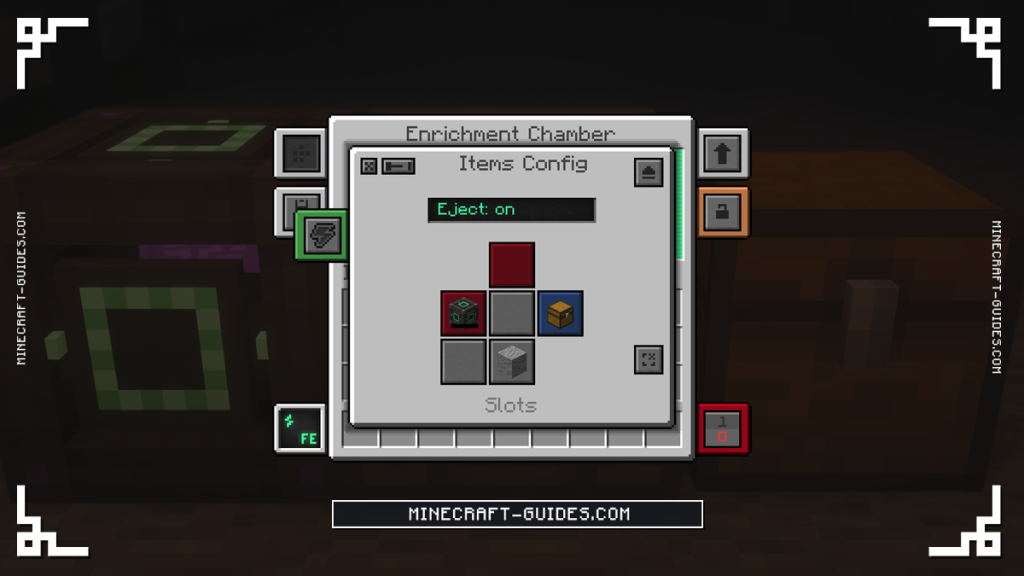
Every machine has a Side Configuration tab on its screen, which shows the six sides laid out flat with a color for each one. Clicking a side there does the same thing as the Configurator does from the outside, and it’s usually the easier way, as you’ll see all six of them at once.
| Setting | Color | What the side does |
|---|---|---|
| None | Gray | Nothing goes in or out |
| Input | Dark red | Takes items in for processing |
| Input (2) | Orange | The second input, on machines with two |
| Output | Dark blue | Lets the finished items out |
| Output (2) | Dark aqua | The second output, on machines with two |
| Input/Output | Purple | Both at once |
| Energy | Dark green | Reaches the slot that charges from an item |
| Extra | Yellow | Reaches the extra slot, like the infusing material |
A new machine has every side set to Input for items, except for the right side, which is Output, and the back, which reaches the energy slot. Machines with a second input, like the  Metallurgic Infuser, have the bottom set to Extra as well. Left and right are worked out from the front of the machine, and power is accepted on all six sides.
A machine won’t push its items out by itself, even with a Chest sitting on its Output side. You’ll need to open the Side Configuration tab and turn on Auto-eject, which has its own switch for items, fluids and chemicals. A few machines do start with the chemical switch on, like the  Electrolytic Separator and the
  Chemical Washer, so those will push their chemicals out without being told to.
The same tab is where you’ll find the settings for Logistical Transporters, with a color for what the machine sends out and a Strict Input switch. Without Auto-eject you’re still able to pull items out with a transporter or a pipe that’s set to pull, which is the next thing the Configurator is used for.
Cables, Pipes and Multiblock Ports
Sneaking and right-clicking the end of a cable, pipe, tube or transporter will change how that one connection behaves. It goes through Normal, Push, Pull and None, and a Mechanical Pipe will only draw fluid out of a tank on a side that’s been set to Pull.
The ports and valves on a multiblock are switched the same way, as they don’t have a Side Configuration tab at all. An  Induction Port goes between input and output, a
  Fission Reactor Port has three settings, and a
  Boiler Valve has three as well.
A few machines use it as a reset button too. Sneaking and right-clicking an  Electric Pump or a
  Fluidic Plenisher with the Configurator will make it forget the area it has already worked through, which is how you’ll get a pump going again after the fluid under it has been refilled.
Redstone Control
Most machines have a redstone button on their screen, and it’s set to ignore redstone to begin with. Clicking it will move it on to Normal, where the machine only runs while it has a signal, and then to Inverted, where a signal will stop it instead.
Some machines have a fourth setting called Pulse, which makes them act once each time a signal turns on. These settings stay with a machine when it’s picked up with the Wrench mode, the same as its sides do, so you won’t have to set a machine up twice.
Configuration Card, Network Reader and Dictionary
The  Configuration Card copies the settings from one machine to another, and it’s made from four Infused Alloy around a
  Basic Control Circuit. You’ll sneak and right-click a machine to copy it, then right-click another machine of the same kind to paste, and the card isn’t used up.
The  Network Reader will tell you about a line of cables or pipes when you right-click one of them, like how much is flowing and how much the line is able to carry. It holds 24,000 FE (60,000 J) and each reading takes 160 FE, so one charge is good for 150 of them.
The  Dictionary is a Basic Control Circuit crafted over a
  Book, and right-clicking a block with it will list that block’s tags in chat. Sneaking and right-clicking opens a screen with a slot for checking an item’s tags, which are what you’ll type into a filter on the
  Digital Miner or the
  Logistical Sorter.
With your sides set up, the next step for most bases is to turn single machines into factories, which run several items at once. They keep the same side settings as the machine they were made from, so everything on this page will carry over to them.
FAQ
Sneak and right-click a side of a machine to change what that side does, or just right-click it to see the current setting. The N key switches the Configurator between its eight modes, like Configurate (Items) for item sides and Wrench for picking machines up.
There isn’t a separate wrench item, as the Configurator does that job in its Wrench mode. A right-click will rotate a machine and a sneak and right-click will pick it up with everything inside, and wrenches from other mods work on Mekanism’s machines as well.
Auto-eject for items is switched off on every machine when it’s first placed, so they won’t leave by themselves. Open the Side Configuration tab, check that one side is set to Output, and then turn on Auto-eject for items, or pull from that side with a transporter instead.
Press N while you’re holding it, which is the Item Mode Switch key, and it’ll move on to the next mode. Sneaking and scrolling the mouse wheel does the same, and you’re able to rebind the key in the controls menu if N is taken by another mod.